This is one of my favourite spaces to share our new branding and website launches, along side some fantastic business information.
The Ultimate Guide to Optimizing Your WordPress Blog Posts with Yoast SEO

If you’re publishing content on your WordPress website, simply hitting “Publish” isn’t enough to rank on Google. To increase your chances of showing up in search results, you need to optimize each blog post for SEO.
That’s where Yoast SEO comes in. This powerful WordPress plugin helps you improve your on-page SEO, making it easier for search engines (and readers) to find your content.
In this guide, you’ll learn exactly how to optimize a blog post using Yoast SEO, step by step.

Why On-Page SEO Matters for Your Blog Posts
On-page SEO is one of the three pillars of SEO, along with off-page SEO (like backlinks) and technical SEO (like site speed and mobile-friendliness). When done correctly, on-page SEO helps search engines understand your content and encourages more clicks from searchers.
By following a structured approach with Yoast SEO, you can:
- Increase your organic traffic
- Improve your click-through rate (CTR)
- Boost your search rankings
Now, let’s walk through how to fully optimize a WordPress blog post using Yoast SEO.
Step 1: Set Up Yoast SEO on Your WordPress Site
Before optimizing your content, make sure you have Yoast SEO installed on your WordPress site.
- Go to your WordPress dashboard
- Click Plugins > Add New
- Search for Yoast SEO
- Click Install Now and then Activate
Once activated, you’ll see the Yoast SEO meta box appear below your post editor whenever you create a new blog post.
Step 2: Write Your Blog Post First (Before Optimizing!)
It might sound counterintuitive, but the best way to optimize your blog post is to write it first, before worrying about SEO.
Instead of forcing keywords into your content, focus on writing for your audience. Your post should be clear, valuable, and easy to read. Once the content is finalized, then you can tweak it for SEO.
Step 3: Optimize Your Metadata with Yoast SEO
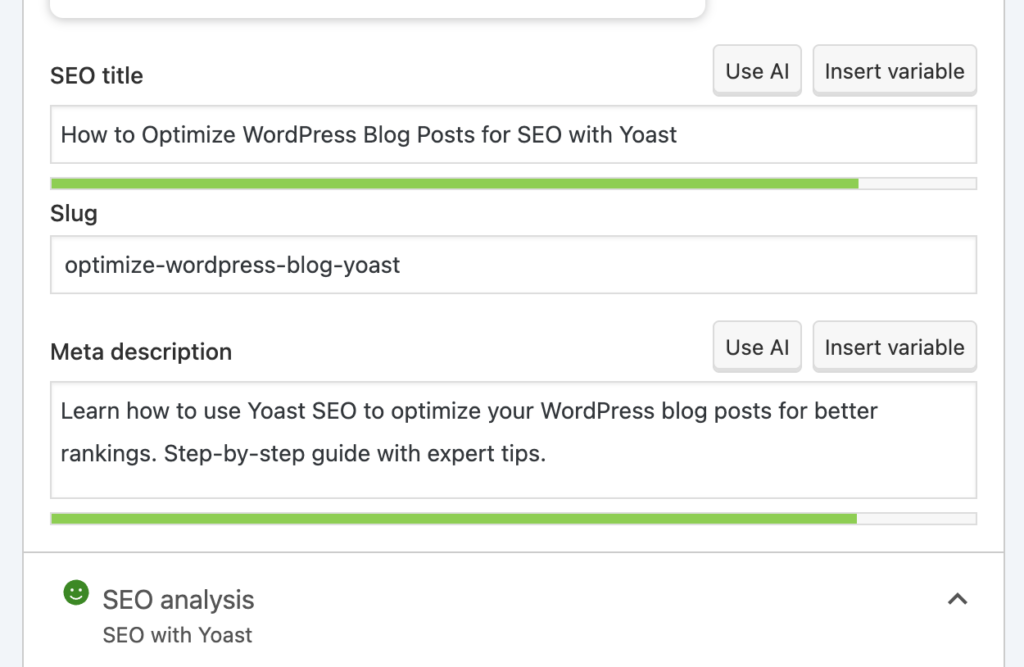
Metadata includes your page title, meta description, and URL slug, all of which influence how your post appears in search results.
1. Optimize Your SEO Title
Your SEO title is the clickable blue link that appears in Google search results. To optimize it:
- Include your primary keyword near the beginning
- Keep it under 65 characters (Yoast will show a green bar when it’s the right length)
- Make it engaging and compelling to increase clicks
Example: If your keyword is “wedding venue ideas”, your title could be: “10 Stunning Wedding Venue Ideas for a Dream Ceremony”
2. Optimize Your URL Slug
The URL should be short, clean, and include your main keyword.
❌ Bad URL: yoursite.com/this-is-my-new-blog-post-about-wedding-venues
✅ Good URL: yoursite.com/wedding-venue-ideas
If your post is already published, don’t change the URL, this could affect rankings.
3. Optimize Your Meta Description
The meta description is the short snippet below the title in search results. While it’s not a direct ranking factor, a well-written meta description can increase click-through rates (CTR).
- Keep it under 160 characters
- Include your main keyword
- Make it enticing so people want to click
Example: “Looking for the perfect wedding venue? Check out these 10 stunning venue ideas to make your special day unforgettable.”
Step 4: Optimize the Blog Post Content
Once your metadata is set, it’s time to optimize the body of your post.
1. Use Your Keyword Naturally in the Content
- Place your main keyword in the first 100 words
- Sprinkle it naturally throughout the post (but don’t overdo it—3-4 times is enough!)
- Use synonyms and related terms to avoid keyword stuffing
2. Use Headings for Structure (H1, H2, H3)
Break up your content using H2 and H3 subheadings. Not only does this improve readability, but it also helps search engines understand the structure of your post.
Example:
- H2: Choosing the Right Wedding Venue
- H3: Outdoor vs. Indoor Venues
3. Add Internal and External Links
Linking to other pages within your site (internal links) helps Google understand your content and improves site navigation.
Example: If your post is about wedding venues, link to related content like: “Check out our guide on wedding budgeting here.”
External links to high-authority sources (like industry blogs or research studies) boost credibility.
4. Add Images and Optimize Them for SEO
Images enhance user experience and keep people engaged. But to make them SEO-friendly:
- Use descriptive filenames (e.g., “outdoor-wedding-venue.jpg” instead of “image123.jpg”)
- Add alt text so Google understands what the image is about
Example Alt Text: “Rustic outdoor wedding venue with floral decorations”
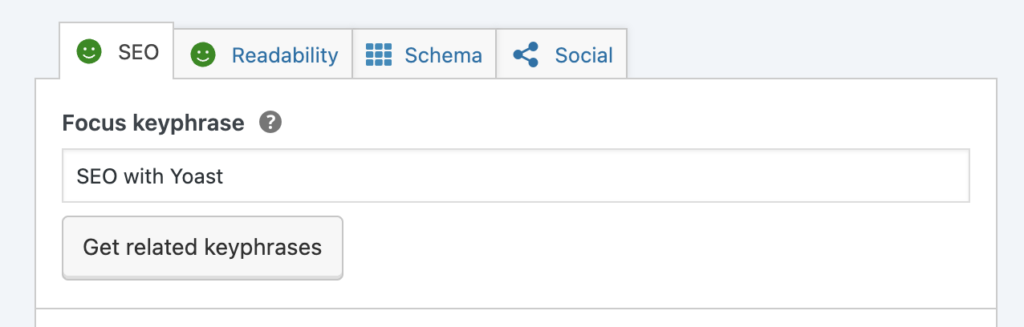
Step 5: Check Yoast’s SEO and Readability Scores
Yoast SEO provides two key scores:
SEO Score – Shows how well-optimized your post is for your target keyword
Readability Score – Ensures your content is easy to read
Aim for a green light on both scores. If you see orange or red, adjust your content accordingly.
Step 6: Publish and Monitor Your Post’s Performance
Once your post is fully optimized, hit Publish! But SEO doesn’t stop there.
- Track rankings in Google Search Console
- Monitor traffic using Google Analytics
- Update the post periodically with fresh information
Final Thoughts
Optimizing a blog post for SEO doesn’t have to be complicated. By following these simple steps using Yoast SEO, you can improve your rankings, attract more readers, and grow your website’s traffic.
Quick Recap:
- Write your content first, then optimize
- Use a compelling SEO title, URL, and meta description
- Structure your content with headings, keywords, and links
- Add optimized images and alt text
- Check Yoast’s SEO and readability scores
By applying these strategies consistently to every blog post, you’ll set your website up for long-term success in search rankings.
Applying this to every single post is the part most people quietly stop doing. If that sounds familiar, there’s Showit + WordPress SEO, done for you.
Leave a Reply
Free, takes about half an hour, and you can leave the list whenever you like.
37 words and phrases that give AI copy away, plus the twenty minute fix for the most important line on your site.
PLEASE COMMENT BELOW